End-user / Billing / Invoicing
View invoices
View all invoices:
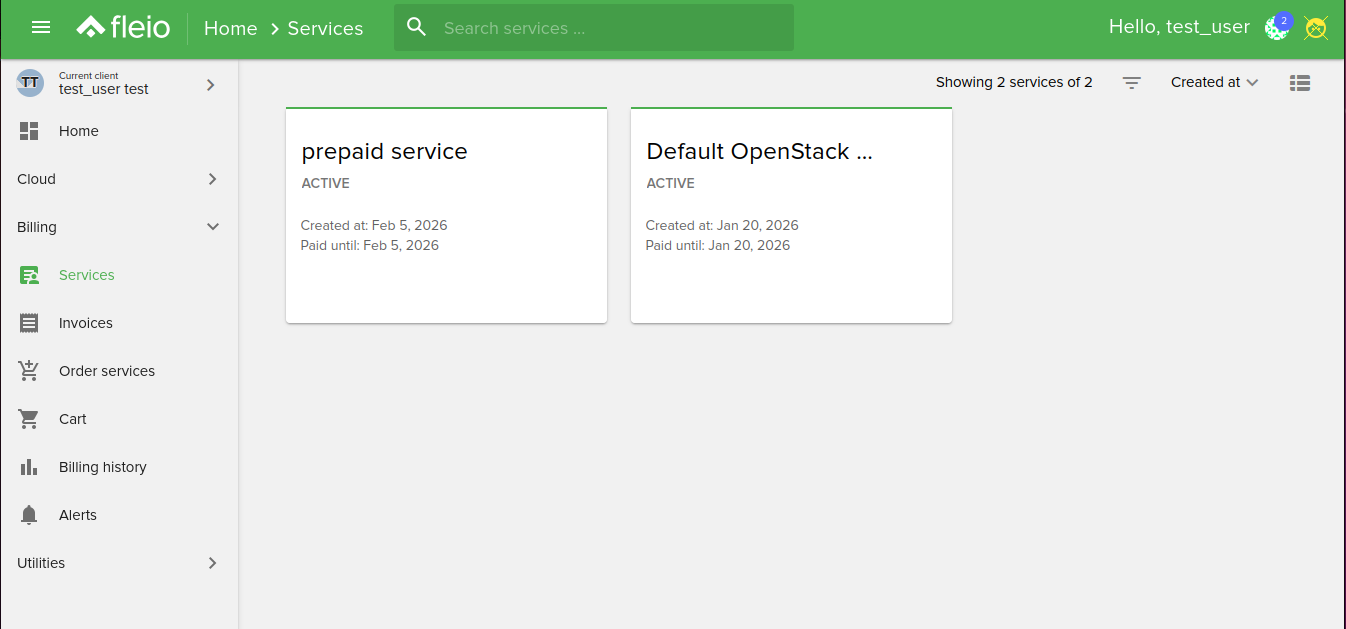
Filter invoices
You can filter invoices by:
Issue date: the issue date of the invoice
Due date: the due date of the invoice
Status: unpaid / paid / canceled / refunded
Total: invoice total
Country: the country of the client
Has taxes: invoices with taxes
Invoice item type: card validation/credit balance/service etc
Company: by company name
VAT ID: by VAT ID
Payment gateway: by payment gateway: IPay/Paypal/Stripe etc
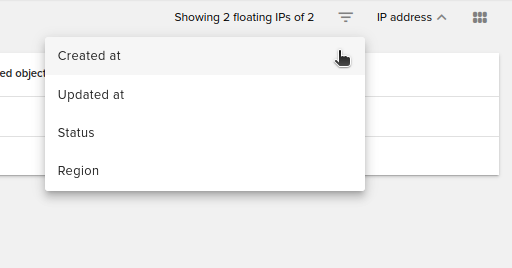
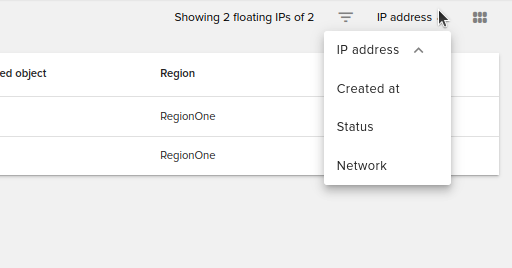
Sort invoices
You can sort invoices by:
Status Paid/Unpaid
Issue Date the date when the invoice was created
Due Date last day to pay an invoice
Total: invoice total
Invoice status bar
Invoices have a colored status bar on list, card and details views. Colors have the following explanation:
Green: paid invoice
Gray: cancelled or refunded invoice
Red: unpaid and overdue invoice
Yellow: unpaid and due date not yet reached
Details tab
Click one of the invoices to get redirected to its details page.
From here you can pay your invoices using one of the payment gateways configured. Select your payment method from the top-right corner of the invoice
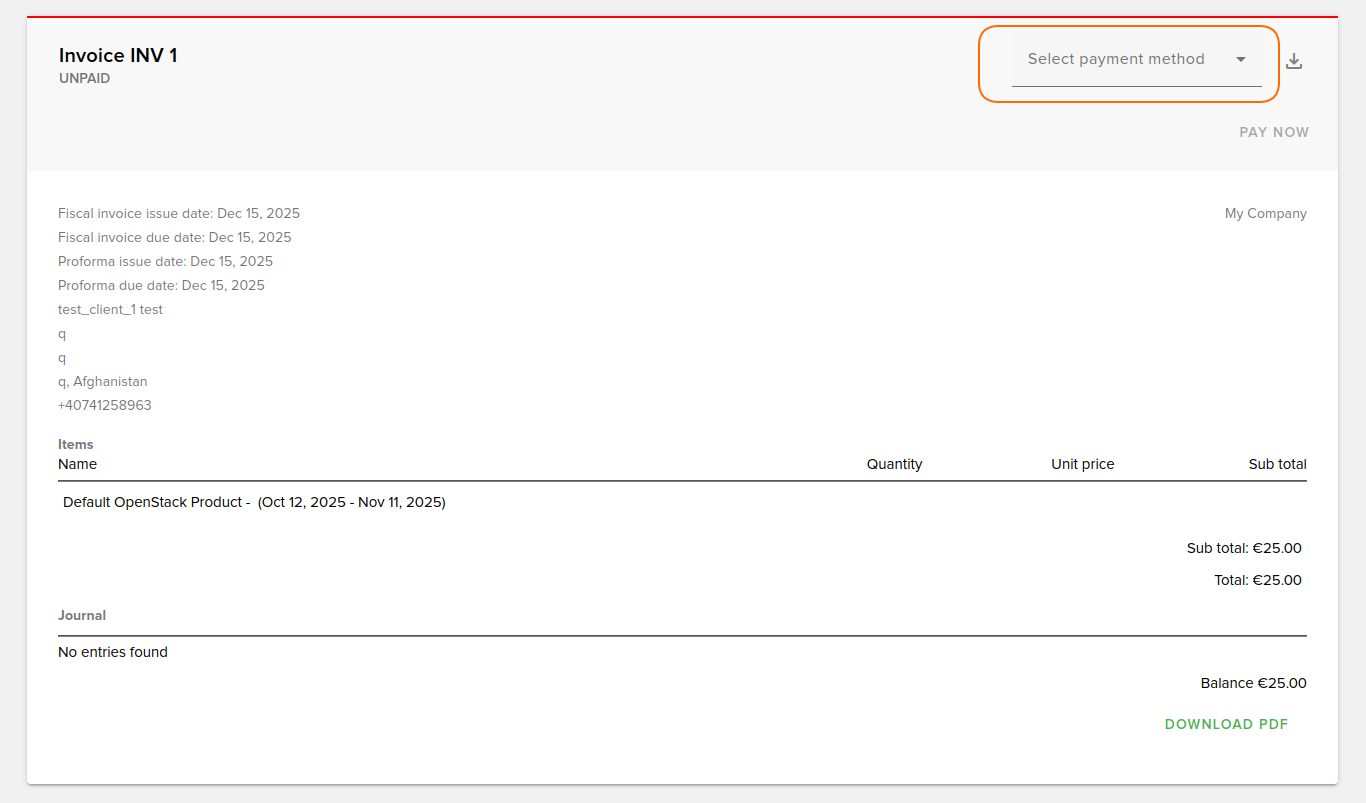
Select your payment method. (if you have active balance you can choose “Credit Balance” as the payment option)
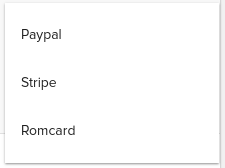
Now hit the Pay Now button and you will get to the payment processing page. Once the payment is made, the user will be redirected back to the invoice.
Also notice that you can download the invoice as a pdf file by clicking the button from the bottom-right corner