Staff / Billing / Invoicing
View invoices
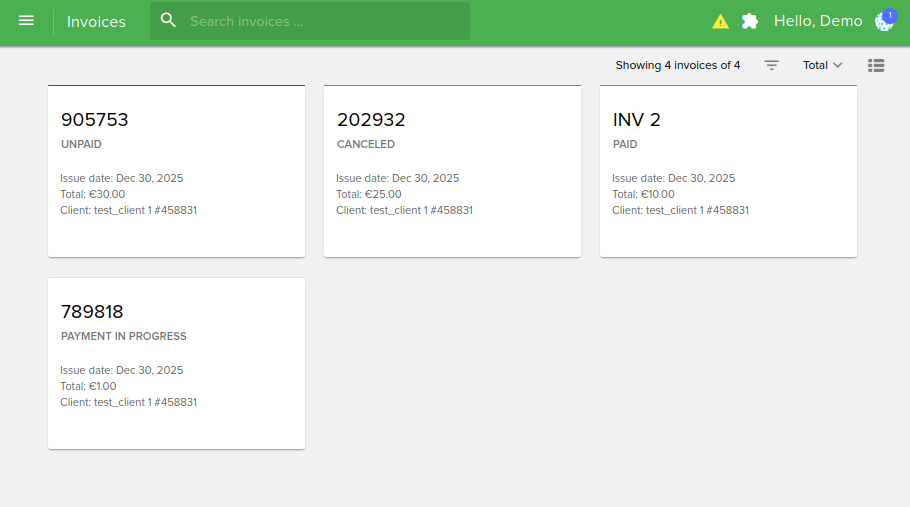
View all invoices from all clients:
Filter invoices
You can filter invoices by:
Issue date: the issue date of the invoice
Due date: the due date of the invoice
Status: unpaid / paid / canceled / refunded
Total: invoice total
Country
Has taxes
Invoice item type: card validation / card validation that adds to credit / credit balance / other / service / Service upgrade
Payment gateway
Has company
Has VAT ID
Company
VAT ID
Client
Client is tax exempt
Tax exempt
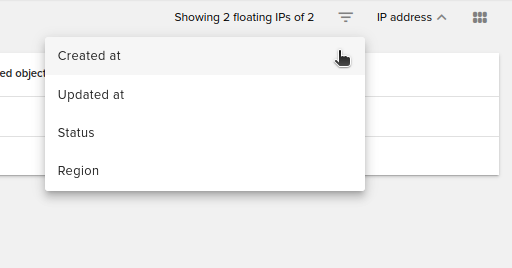
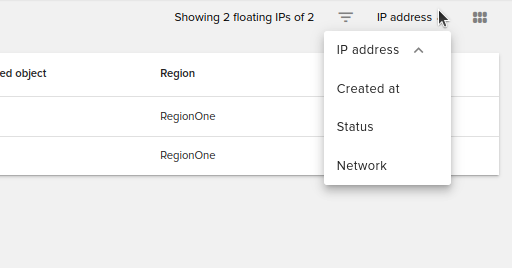
Sort invoices
You can sort invoices by:
Status paid/unpaid
Issue Date the date of invoice creation
Due Date last day to pay an invoice
Client client name
Total invoice total
Invoice details
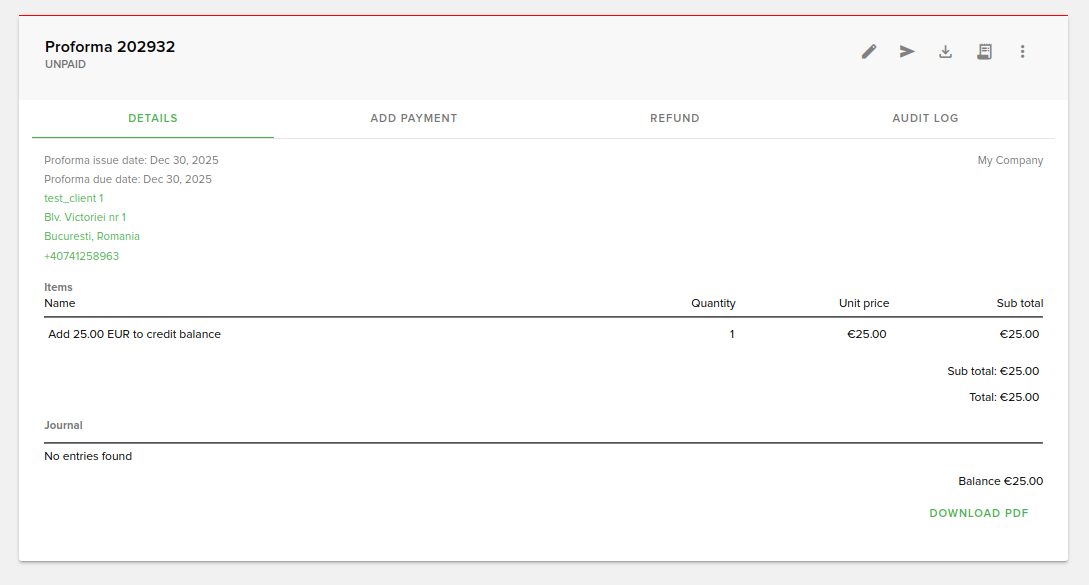
After clicking on a card you get redirected to the invoice details page that looks like in the below image:
Invoice status bar
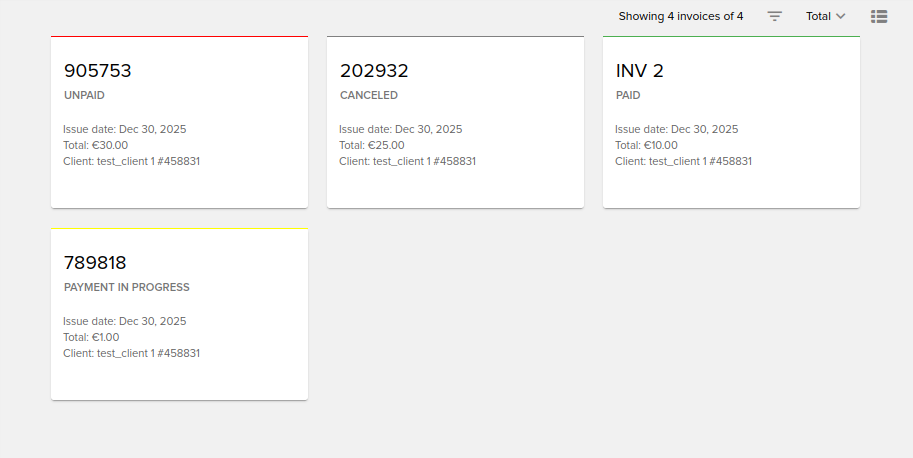
Invoices have a colored status bar on list, card and details views. Colors have the following explanation:
Green: paid invoice
Gray: cancelled or refunded invoice
Red: unpaid and overdue invoice
Yellow: payment in progress, unpaid and due date not yet reached
You can switch through the following tabs:
Details tab
See details about the invoice, items and journal entries:
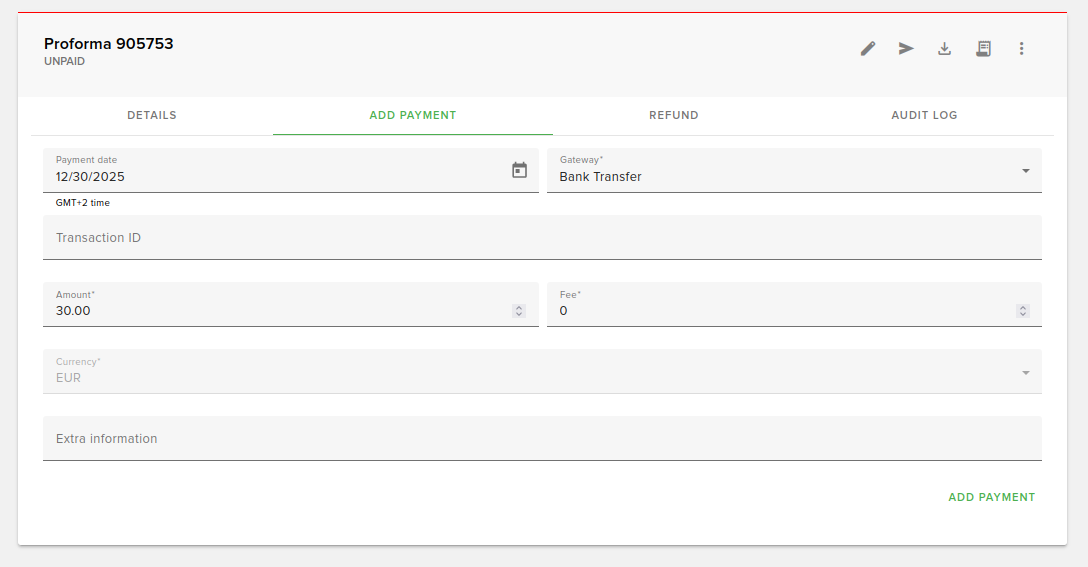
Add Payment tab
Here you can add a payment by submitting the required information:
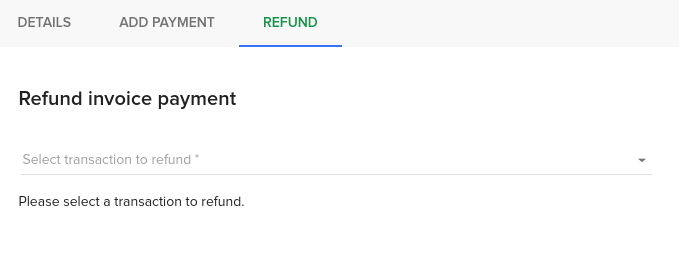
Refund tab
Here you can make a refund:
Audit Log tab
Here you can see the invoice audit logs:
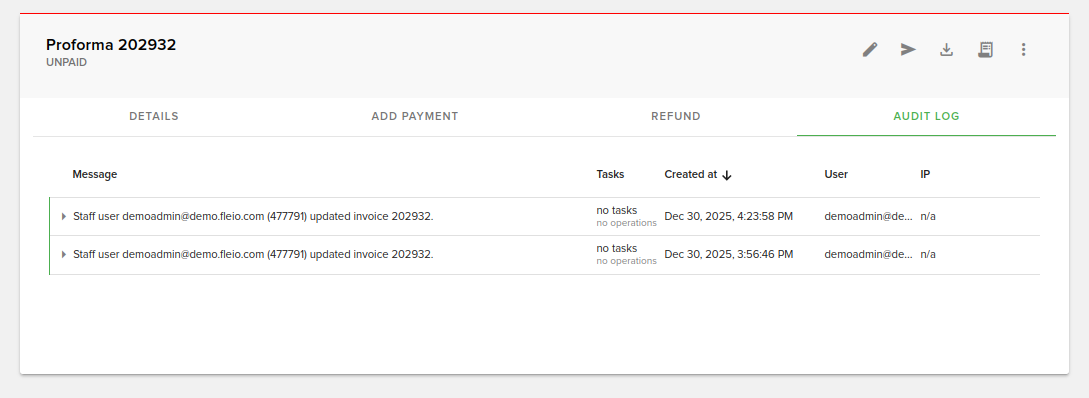
Invoice actions
Creating an invoice
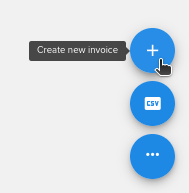
You can add an invoice by clicking the button from the bottom right side of the screen:
This will redirect you to the invoice create form:
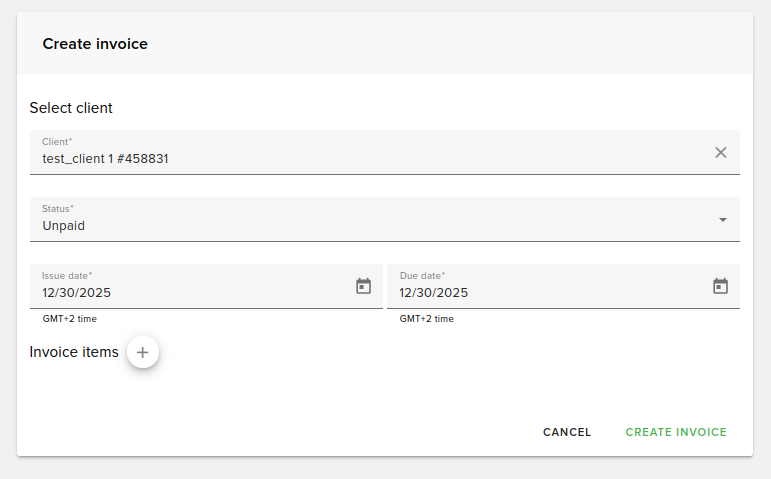
You will need to select a client and add at least an invoice item. The (+) button for invoice item addition will be available once you select a client.
Editing an invoice
You can edit an invoice by clicking the ‘edit’ icon from the top-right of the invoice details page:
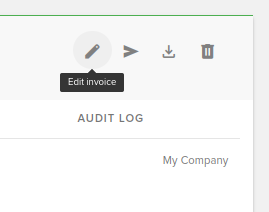
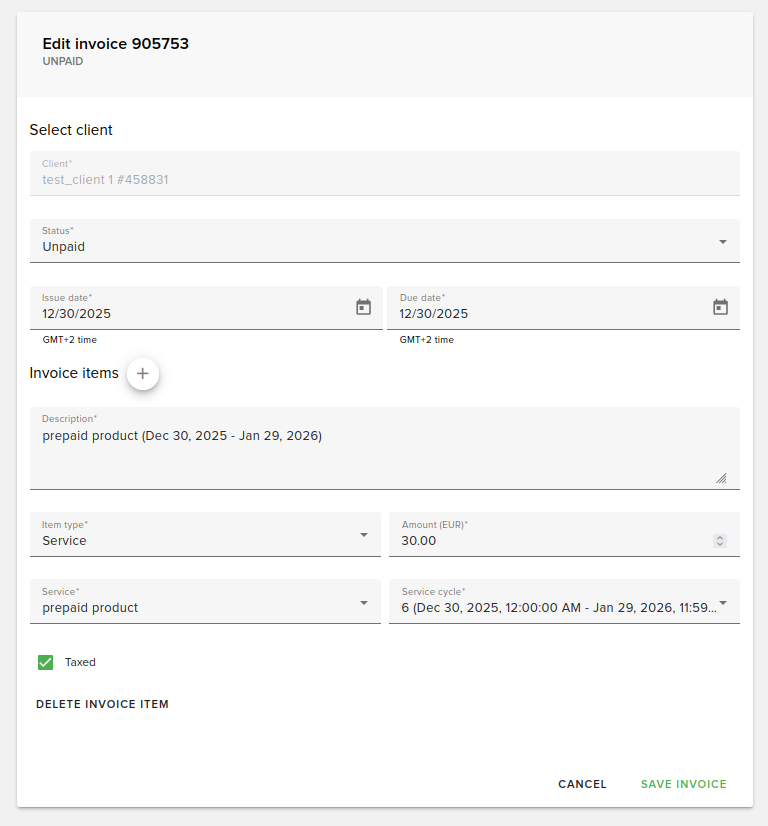
You will then be redirected to the edit page where you can perform multiple actions like changing the status of the invoice, adding invoice items or deleting them:
Editing client details on PDF
You can customize what details to show on the “Invoiced to” section from the downloadable invoices pdfs.
In order to do this, checkout the INVOICE_CUSTOMER_DETAILS_GETTER variable from the
/var/webapps/fleio/project/fleio/base_settings.py file.
Currently, it is set as:
INVOICE_CUSTOMER_DETAILS_GETTER = 'fleio.billing.utils.get_customer_invoice_details'
The string points to a function from the fleio > billing > utils.py file that returns a string with the client details, each one being separated by “n”.
You can change the path to point to a function of your own by adding the same variable in the custom settings file (How to edit settings.py file) along with the new path. You can use the existing method as an inspiration, this is an example:
def get_customer_invoice_details(invoice) -> str:
    """
    Method that gets what info to display on pdf invoices
    :param invoice: the invoice
    :return: Returns a string containing information separated by '\n'
    """
    client = invoice.client
    info = [client.long_name, client.vat_id, client.get_country_display(), client.phone]
    return '\n'.join([x for x in info if x])
With the 2019.08.0 version we have added a new method that will allow you to change the PDF layout. Please see the advanced pdf generation configuration page.
Download invoice PDF
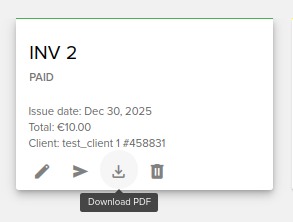
You can download an invoice PDF by clicking the ‘Download PDF’ icon:
Change to fiscal invoice
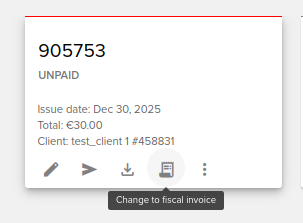
You can change the proforma invoices to fiscal invoices by clicking the ‘Change to fiscal invoice’ icon:
Delete an invoice
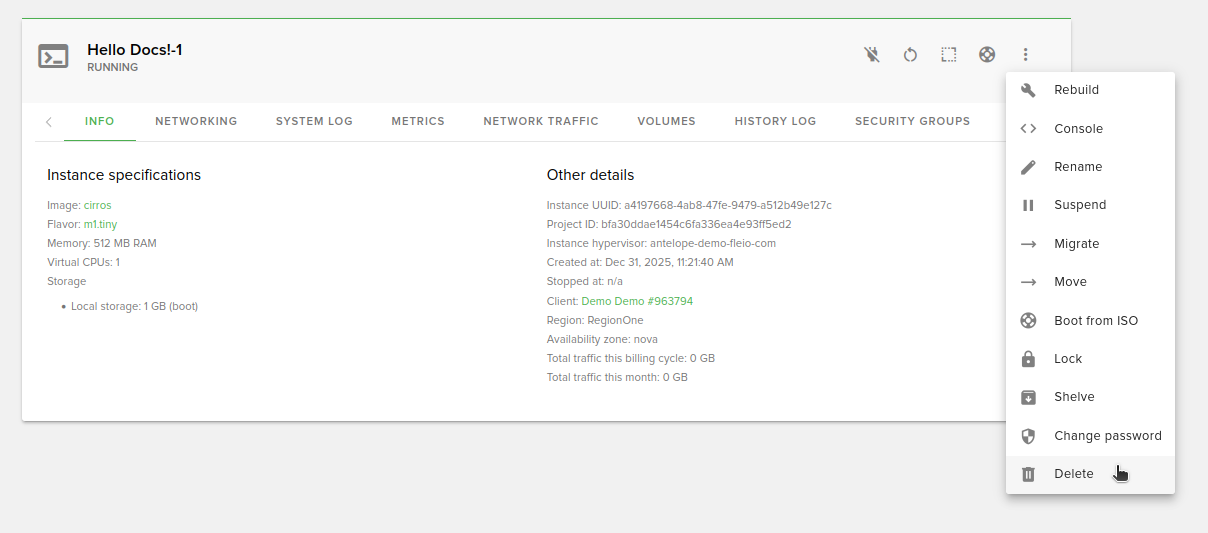
You can delete an invoice by clicking the ‘Delete’ icon:
Export invoices to CSV
You can export the invoices to CSV by clicking the ‘Export invoices to CSV’ button from the bottom right side of the screen: