End-user / Cloud / Volume backups
In this page, you can do as follow:
Create new volume backup
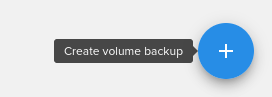
To create a new volume backup, go to Volume backups from the Main Menu and then to Create volume backup (bottom right).
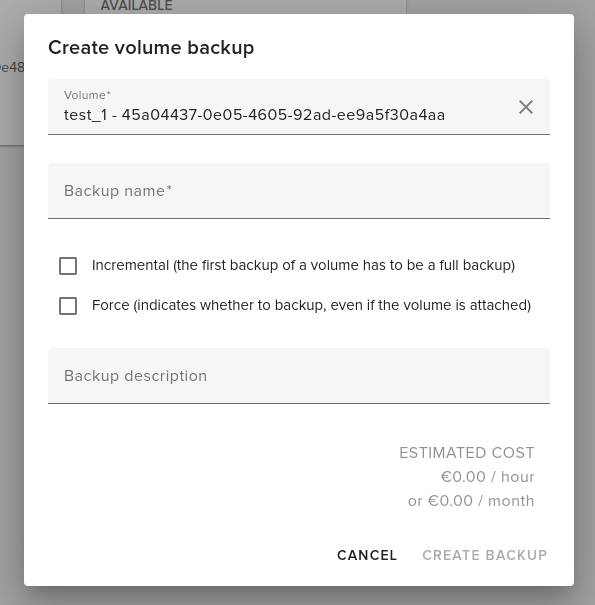
A create volume backup dialog-box will open and you will have to fill in the following fields:
Search volume backups
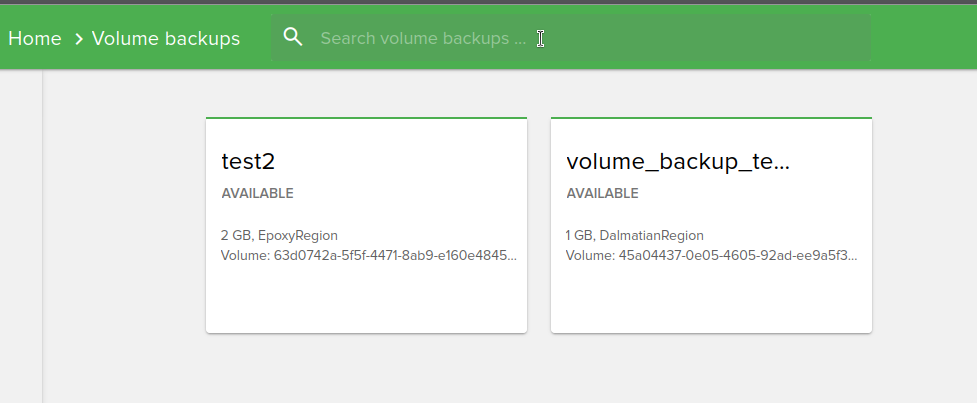
To search a volume backup, just type the volume backup name in the search box from the top of the Volume backups page.
Sort volume backups
From the top-right of the page, you can sort volume backups by:
Name
Status
Size
Date created
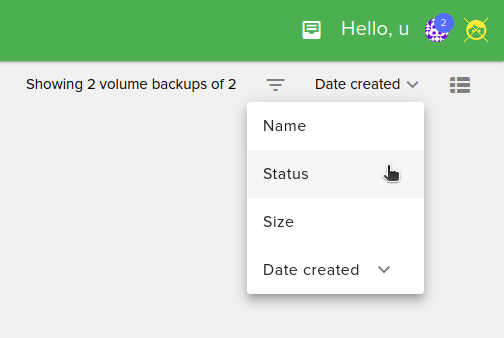
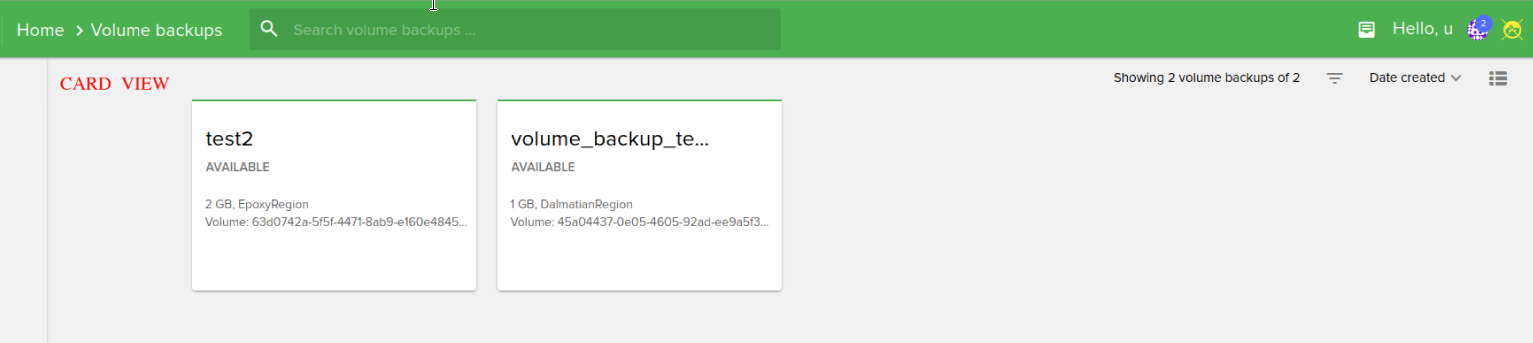
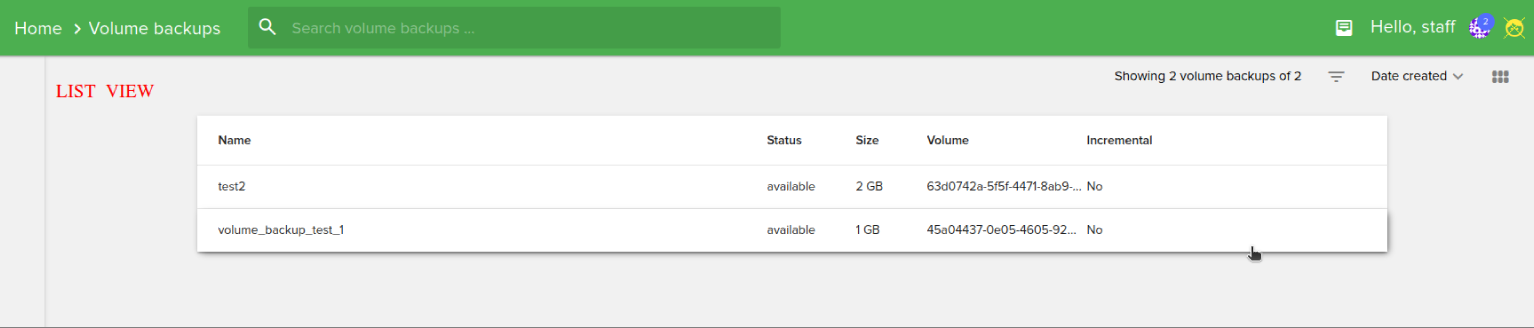
Also you can switch from Card View to List View by clicking on the grid from top-right. Examples are shown below:
Edit volume backups
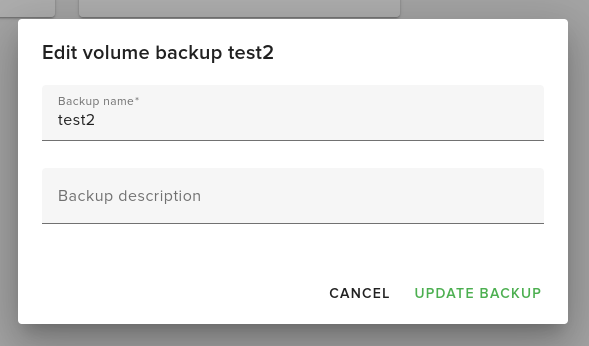
To edit a volume backup, select it from your list and click on the Edit button, the following dialog-box will open:
Restore volume backups
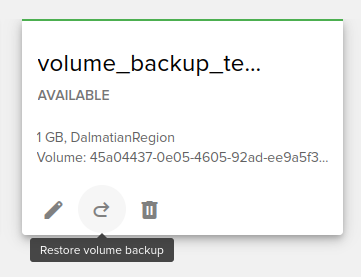
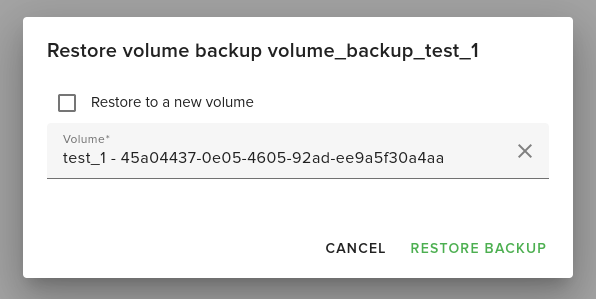
To restore a volume backup, select it from your list and click on the Restore volume backup button,
The following dialog-box will open:
Delete volume backups
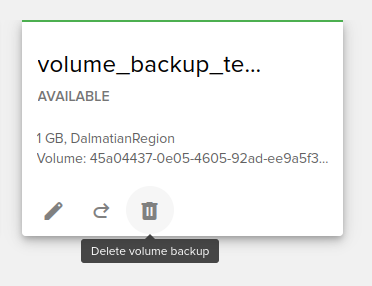
To delete a volume backup, select it from your list and click on the Delete button.