Staff / Cloud / Network QoS
This page allows you to manage Neutron Quality of Service (QoS) policies.
QoS policy list
Neutron QoS policies are shown on the Network QoS page found under the Cloud menu category.
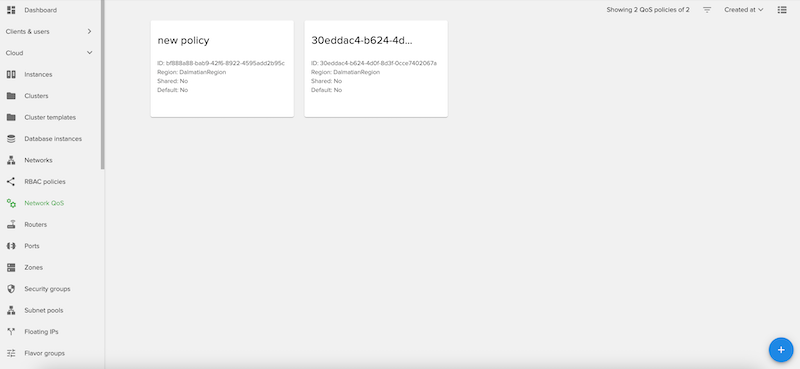
Users can switch from Card View to List View by clicking on the grid from the top-right side of the page.
To search for a QoS policy, type into the search box from the top of the page.
Sort and filter QoS policies
From the top-right of the page, you can sort policies by:
ID
Created at
Updated at
Revision number
Name
Region
Shared
Is default
Project
QoS policies can also be filtered by:
Project
Region
Created at
Updated at
Revision number
Is default
Shared
Create new QoS policy
Important
QoS policies are currently created only for the administrator project.
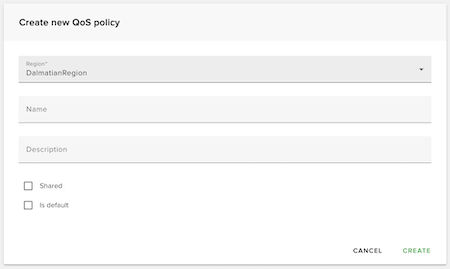
To create a new QoS policy click the plus (+) button from the bottom-right side of the list page.
On the next page fill in these fields:
Region: Select the region to create the policy in
Name: An optional name to set to the policy
Description: An optional description to set to the policy
Shared: Allows all other tenants to view or attach the policy to their Neutron ports or networks
Is default: Determines if newly created networks will automatically be assigned this QoS policy, unless a different policy is explicitly specified during the network creation. This setting is unique to a project.
After creating a policy, it can be assigned to ports, networks or floating IPs on their create or update pages.
View QoS policy details
Details tab
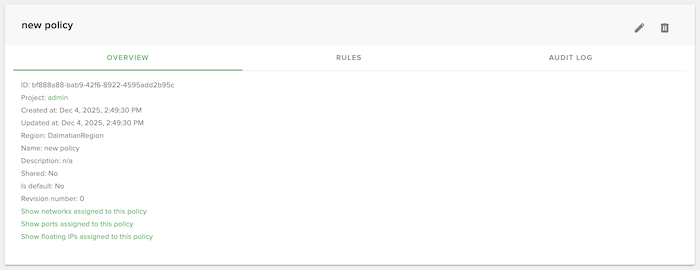
To find more details about the QoS policy, click on a policy box. A new page will open and there you’ll find all details about the policy as follows: ID, Project, Created at, Updated at, Region, Name, Description, Shared, Is default, Revision number. There are also links to show the Networks, Ports and Floating IPs assigned to this policy.
Rules tab
On QoS policy details page you can also find the Rules tab. Here, rules associated with the policy can be managed.
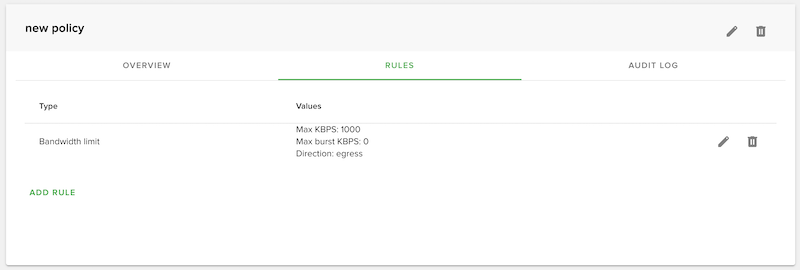
To add a new rule, click the Add rule button. A new page is opened where you can choose the type of the rule and its associated attributes.
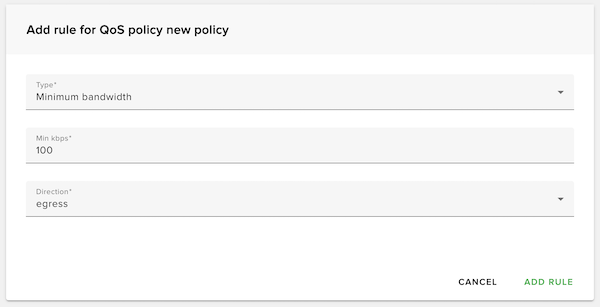
After you add a rule, you are redirected back on the policy Rules tab. Here, each rule can be edited or deleted using the corresponding action button.
Audit log tab
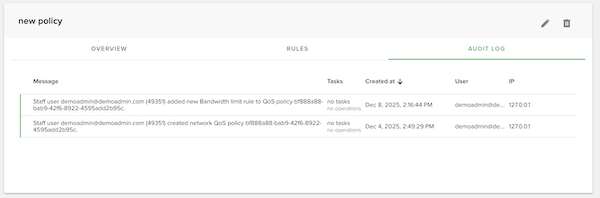
On QoS policy details page you can also find the Audit log tab. Here, all actions performed by users on the QoS policies or their rules are displayed.
Edit QoS policy
On the edit QoS policy page, you will be able to change the policy Name, Description, Shared and Is default values.
Delete QoS policy
To delete a policy click on Delete icon of the record. Policies that are in-use by either networks, ports or floating IPs cannot be deleted.