Staff / Billing / Gateways
Here you can see the available payment gateways and manage them. For now, Fleio works with the following payment processing gateways: Paypal, Stripe, Romcard, IPay, PayU, or Bank Transfer. To configure any of these see Configuring payment gateways page.
After you set up a payment gateway from the settings.py file, you need to go to the Gateways page in staff panel to enable them.
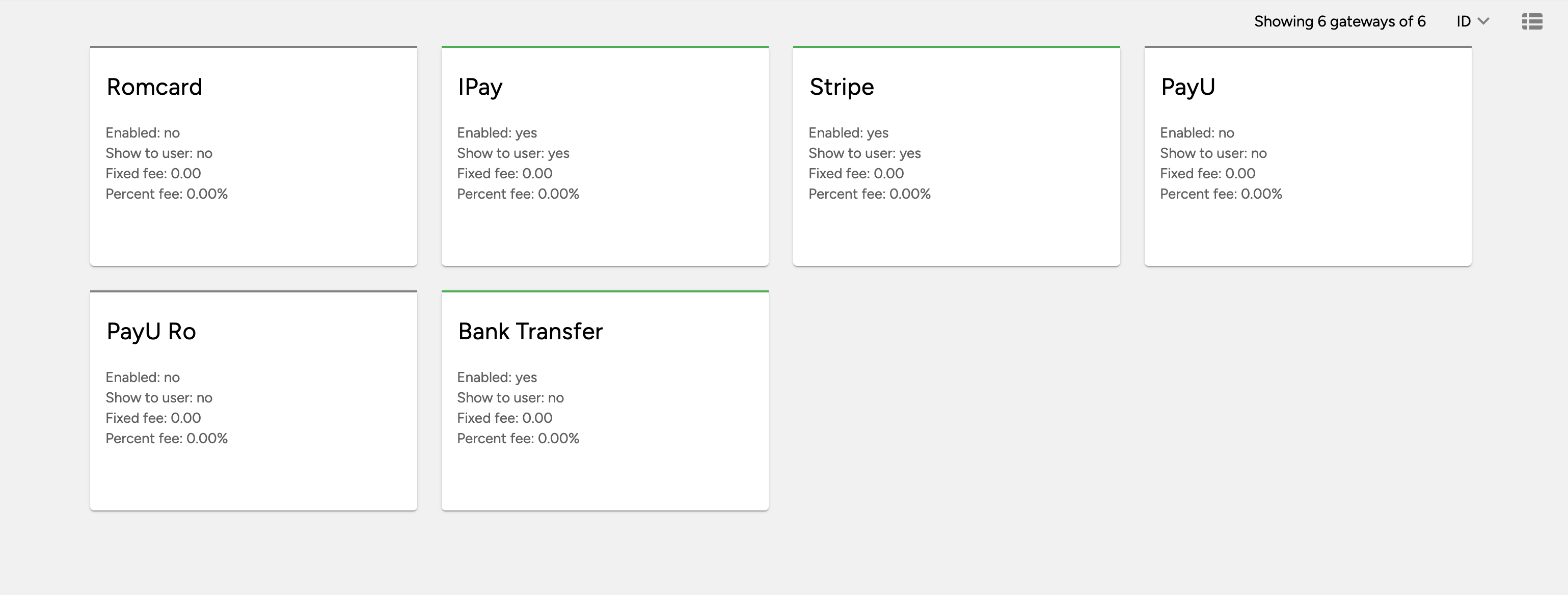
Click the Edit gateway button on one of the gateways to display the edit form:
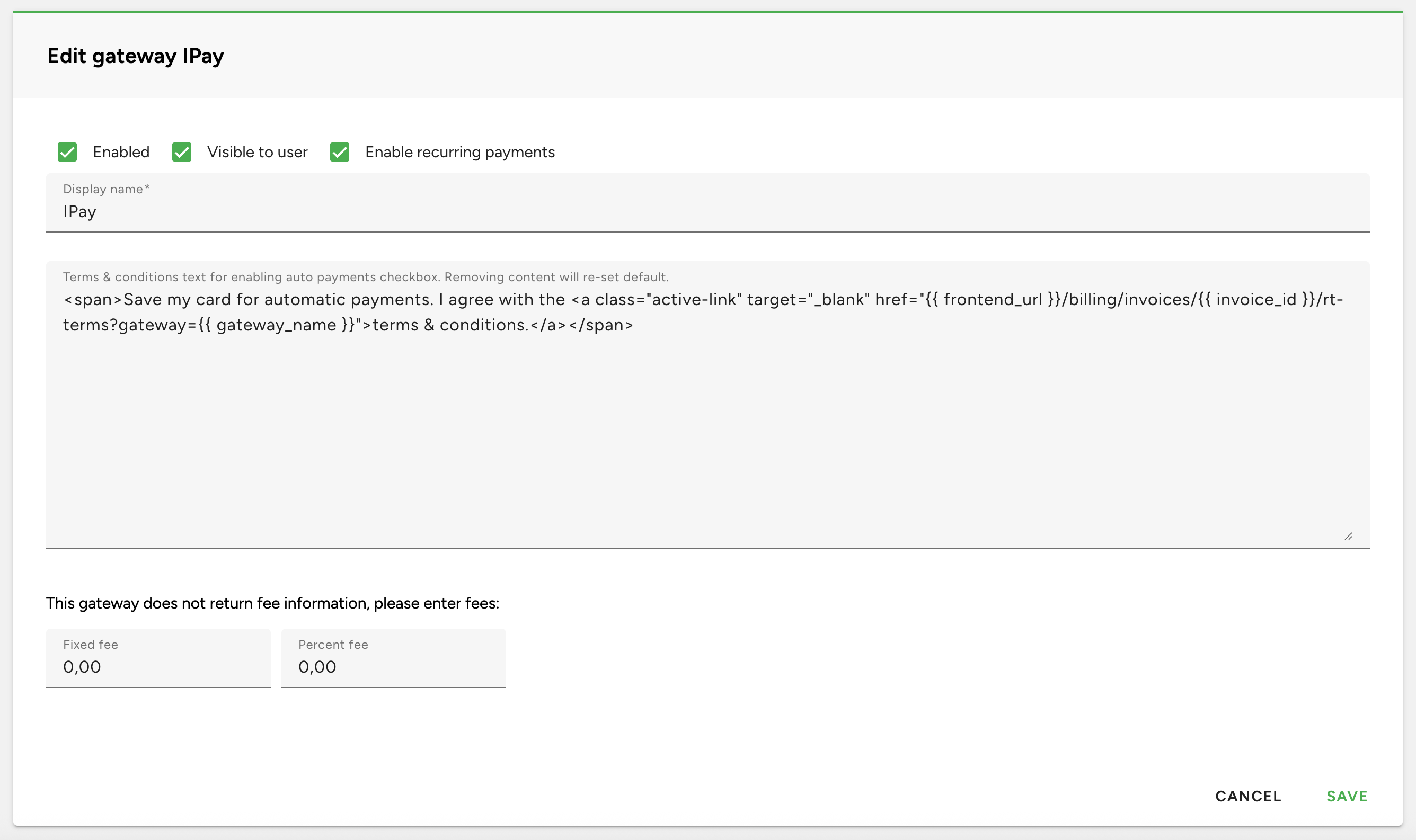
You can configure the following options from the edit gateway page:
Enabled - enables the payment gateway to be used by staff to add manual payments
Visible to user - shows this gateway to end-users on invoice payment options
Enable recurring payments - when this is checked end-users will be able to save a card on file to be automatically charged later or to be selected as a payment method when end-user manually pays an invoice (admins must first configure the gateway for recurring transactions as described here)
Display name - this is how end-users will see the gateway in the invoice payment options
Terms & conditions text for enabling auto payments checkbox - when recurring payments is enabled and end-user selects the gateway, a checkbox with the text defined here will be shown (the default text contains a dynamic link that redirects to the terms for invoiced services recurring payments, available only when billing.recurring_payments_terms feature is enabled)
Fixed fee & Percent fee - the fees used by the payment gateway for each transactions - these will be stored in journal entries related to transactions
The default text next to the checkbox for enabling recurring payments is:
<span>Save my card for automatic payments. I agree with the <a class="active-link" target="_blank"
href="{{ frontend_url }}/billing/invoices/{{ invoice_id }}/rt-terms?gateway={{ gateway_name }}">terms
& conditions.</a></span>
Configure recurring transactions terms
The agreement requirement for enabling recurring transactions for service(s) can be enabled via the billing.recurring_payments_terms feature.
This will make use of a template that can be shown to end-users before setting their card on file.
Enabling this feature will make the payment method the client saves when paying an invoice to be associated with the services from the paid invoice, meaning that only these services will be automatically charged when they are next invoiced. Clients also have a Set up recurring transactions action for services when the above mentioned feature is active, where they choose an existing payment method to be automatically charged and agree to the terms.
If this feature is disabled and client saves a payment method, it will be used to automatically charge any of his services.
Note
If this feature was disabled in the past and now enabled, existing payment methods will not be charged anymore, clients will have to use the Set up recurring transactions service action where they agree to the terms for each service. You can use the Mass message staff action and notify about this change only the clients that have payment methods by filtering them.
When a client agrees to the terms, a copy of the agreement is emailed to him along with a PDF copy of it.
This PDF is also saved on the Fleio machine inside /var/fleio/rt_terms directory and linked to a database record.
To customize the template for recurring transactions agreement go on the gateway details page, RT TERMS tab.
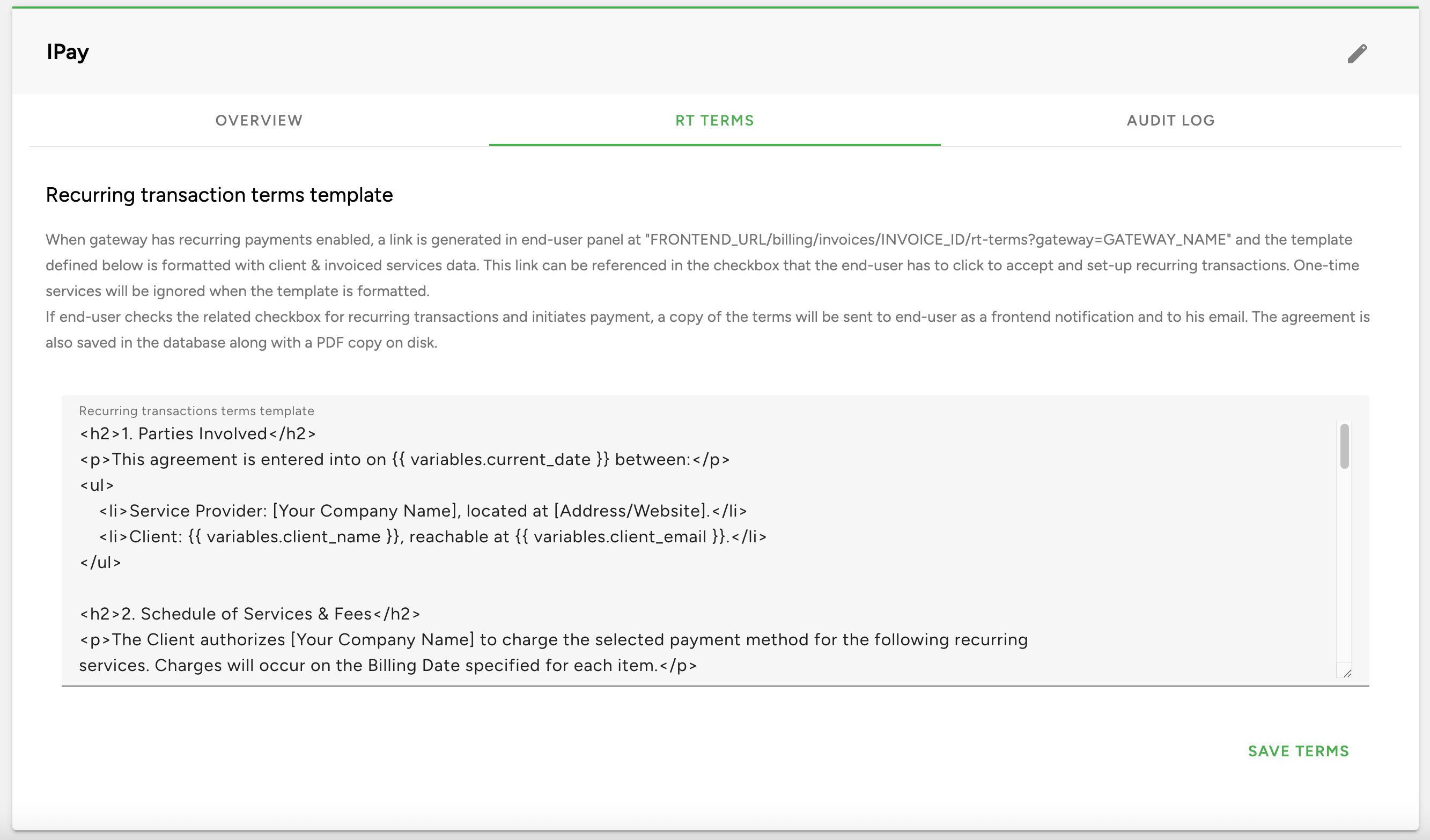
This template will be formatted with the service(s) details and other data.
The following variables can be used: variables.current_date, variables.client_name, variables.client_email,
variables.services. Each service has a name, id, billing_frequency, next_invoice and
localized_amount to be used in the template.
This agreement will be shown on the following locations:
/billing/invoices/{{ invoice_id }}/rt-terms?gateway={{ gateway_name }}page, where template will be formatted with the services from the invoice (this link is inside the invoice save card on file checkbox text as described above in this documentation)the Set up recurring transactions service action available in end-user panel
If the billing.recurring_payments_terms feature is enabled, clients also have an action to Cancel recurring transactions only for a certain service and they will be notified of their action. When one of the services with recurring transactions enabled is upgraded/downgraded, clients will be notified regarding the changes of automatic payments. The notifications content can be modified in the message templates page.