End-user / Billing / Services
To understand what is a “service” in Fleio, see billing concepts service page.
View services
On this page the end user can preview his services after an order was submitted:
Card view:
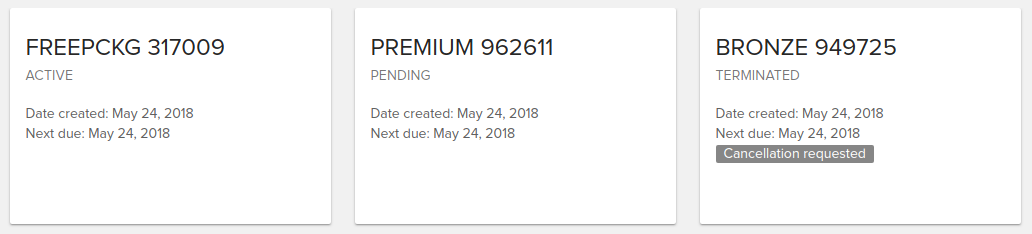
List view:

Using the controls from the top right corner of the screen (represented in the above image) you can:
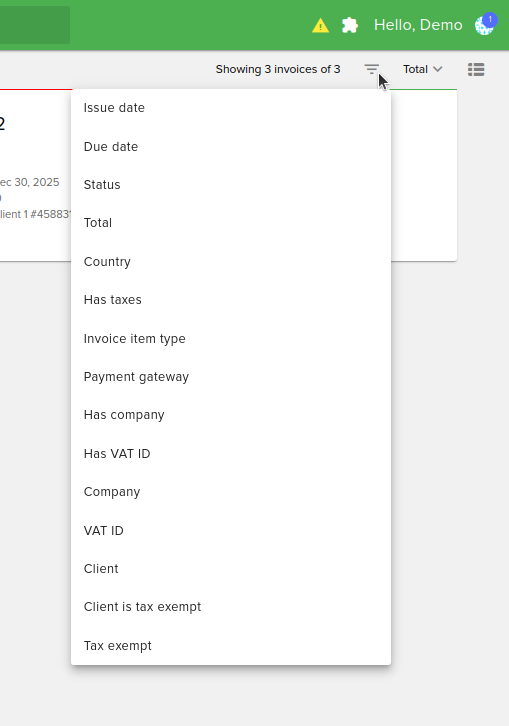
Filter services
You can filter the services by:
Created at: the date when the service was created
Updated at: the date when the service was updated
Activated at: the date when the service was activated
Suspended at: the date when the service was suspended
Terminated at: the date when the service was terminated
Status: displays current status of the service
Paid until: the date until service is considered as paid
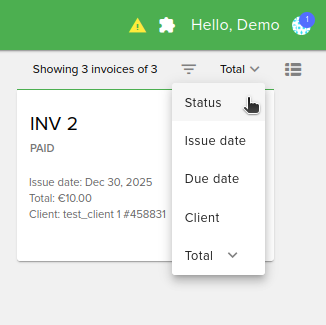
Sort services:
You can sort the services by:
Name: name of the service
Created at: the date when the service was generated
Paid until: the date until service is considered as paid
Status: status of the service (can be: Active, Pending, Suspended, Terminated, Canceled, Fraud, Archived)
To generate a service you need to go to the Order Services tab and submit an order.
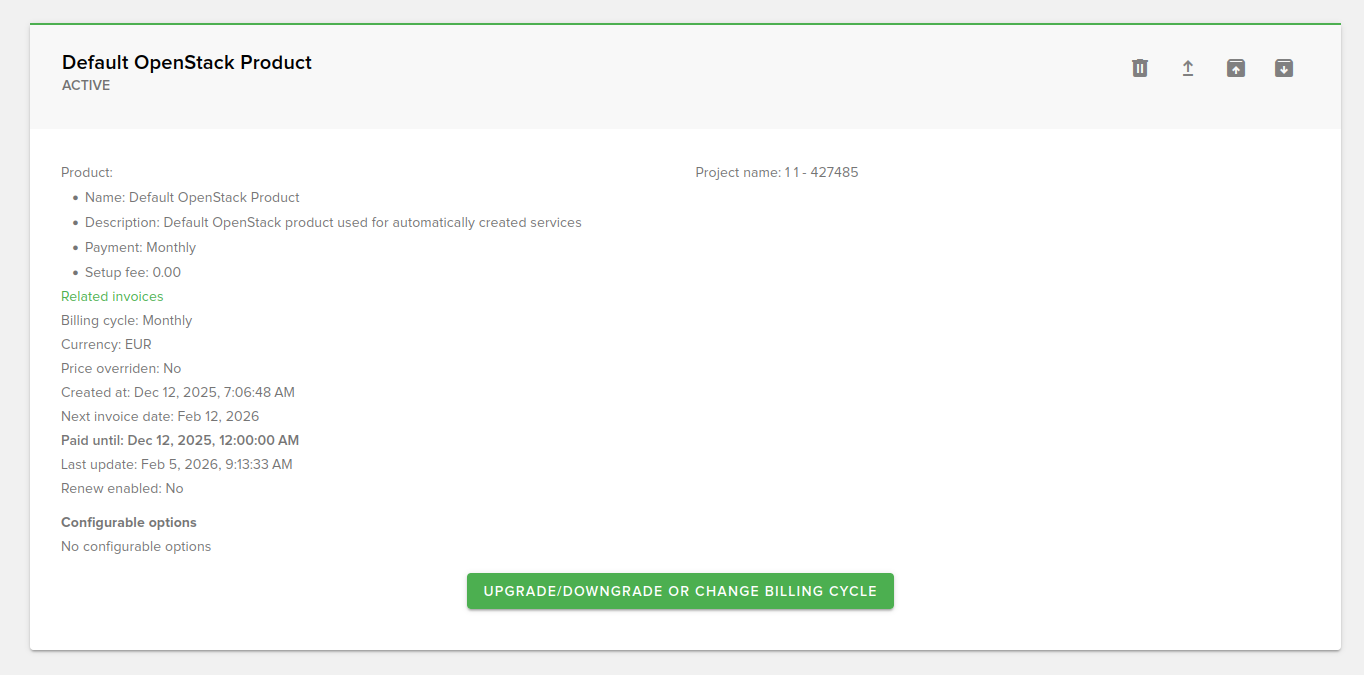
Click on a card to enter the service details page where you can see other detailed information besides the info from the cards/list view.
You’ll see the following information:
- Product: product info:
Name: name of the product
Description: product description
Payment: payment info
Setup fee: product setup fee
Billing service: can be Daily, Monthly, Quaterly, Yearly
Currency: service currency
Price overriden: if service has any overriden price
Recurring transactions enabled: shows if a payment method is assigned to this service to be automatically charged
Created at: the moment when the service was generated
Next invoice date: when nect invoice will be generated
Paid until: the date until service is considered as paid
Last update: the last moment when it was updated
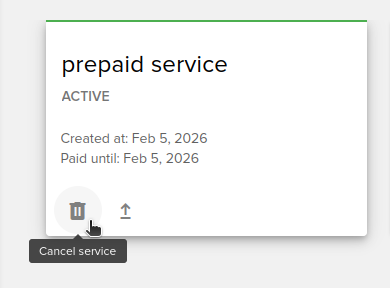
The enduser has the possibility to request cancellation of any service. To do so, hover over any card on the list page or use the button from the top right corner of the card on the service details page (the following image shows the button hovered).
After clicking the button the following popup is triggered where the user can submit the cancellation request.
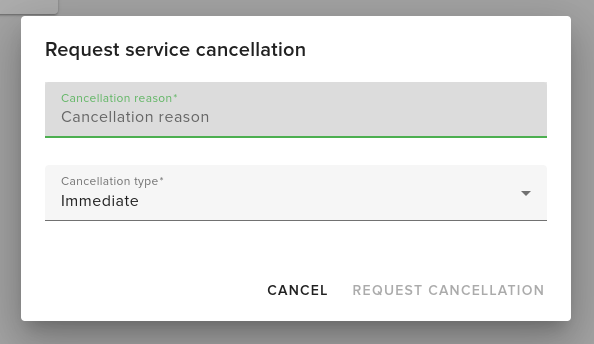
Fields:
Cancellation reason (required): details about the request
- Cancellation type (required) - multiple choices:
Immediate: service is immediately canceled
On service due date: service will be canceled on the service due date
After submitting the form the service will be marked with the following label:

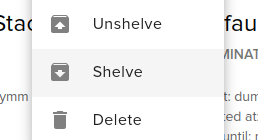
Shelve all instances for service
In order to shelve all instance for a service you need to click on the Shelve all instances for service button:
Unshelve all instances for service
In order to unshelve all instance for a service you need to click on the Unshelve all instances for service button:
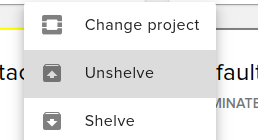
Unshelve will restore all instances to running state.
Set up recurring transactions
This action is available when clients can save payment methods but the service is not configured to be automatically charged when invoiced and the billing.recurring_payments_terms feature is enabled.
End-users are redirected to a page where they choose an existing payment method to be automatically charged and agree to the terms. After submitting the form, clients will be notified with a copy of the terms. See more about this flow here.
Cancel recurring transactions
This action is available when a payment method is assigned to this service to be automatically charged when a new invoice is generated. After submitting the action, clients are notified about the change.